Download Z Maestro – Free Audio Production Software for Windows
Introduction: Why Z Maestro Is Gaining Attention
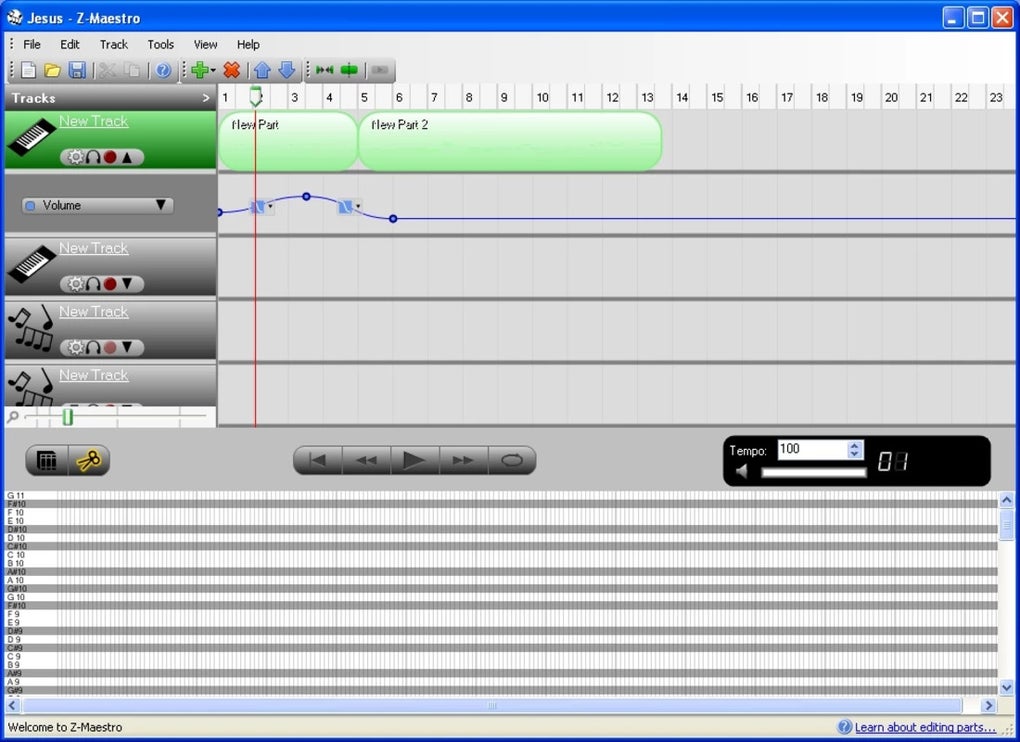
Z Maestro is a fresh, Windows‑only multimedia audio application that mimics the intuitive layout of Apple’s GarageBand while delivering a unique set of tools for music creators. Although still under active development, the program already supports multi‑track composition, a built‑in SoundFont engine, and real‑time effect processing. For hobbyists, bedroom producers, and even semi‑professional musicians who need a lightweight, free alternative to heavyweight DAWs, Z Maestro offers a compelling mix of accessibility and depth. Its visual track editor lets users drag‑and‑drop instruments, arrange patterns, and fine‑tune each channel’s volume, pan, and effect chain without the steep learning curve typical of professional studios.
The application shines when you want to experiment quickly—use your computer keyboard as a virtual piano, plug in a MIDI controller, or connect a professional instrument via USB. The SoundFont engine ensures that every note is rendered with high‑quality sampled instruments, while built‑in processors such as echo, chorus, and tone filters give you instant sonic polish. Because Z Maestro is free to download and regularly updated, it represents a secure, low‑risk entry point for anyone looking to explore music production on Windows.
In the sections that follow, we’ll dive into the core features, walk through the installation process, examine system compatibility, and weigh the pros and cons so you can decide whether Z Maestro deserves a spot in your creative toolkit.
Core Features and What Sets Z Maestro Apart
- Multi‑track sequencing with unlimited audio and MIDI lanes.
- Integrated SoundFont engine delivering realistic instrument patches.
- Keyboard‑as‑MIDI input for quick melodic sketching.
- Support for external MIDI controllers and professional instruments.
- Real‑time effect suite: echo, chorus, reverb, pitch‑shift, and custom tone filters.
- Visual arrangement view with drag‑and‑drop clip editing.
- Automation lanes for volume, pan, and effect parameters.
- Project export to WAV, MP3, and OGG formats.
- Regular free updates that add new instruments and effects.
- Simple, GarageBand‑inspired interface that lowers the learning barrier.
Beyond the listed items, Z Maestro’s architecture is built around modularity. The SoundFont engine can load any standard SF2 file, meaning users can expand their sonic palette by downloading free or commercial SoundFonts. This flexibility is rare in free Windows audio tools, which often lock you into a single instrument library.
Another standout feature is the ability to use the computer’s keyboard as a virtual piano. Each key corresponds to a musical note, and you can switch octaves on the fly. This is perfect for sketching ideas when a MIDI controller isn’t available. The software also supports velocity sensitivity when a proper keyboard is connected, preserving the expressive nuances of a live performance.
Effect processing occurs in real time, allowing you to audition changes instantly. For instance, you can add an echo to a vocal track, tweak the feedback amount, and hear the result without rendering. The automation lanes make it simple to create evolving soundscapes—automate a low‑pass filter to open gradually over a synth pad, or fade a reverb tail as a drum loop ends.
While Z Maestro is still adding advanced features such as VST support and sophisticated mixing tools, its current capabilities already cover the essential workflow of composition, arrangement, and basic mixing. For users who value speed and a clean interface over a sprawling feature list, Z Maestro feels like a purposeful, well‑curated audio tool.
Installation, First‑Time Usage, and Compatibility
Step‑by‑Step Installation Guide
Downloading and installing Z Maestro is straightforward. Follow these steps to get the software up and running on a Windows PC:
- Visit the official Z Maestro website and click the Download for Windows button. The installer is a small
.exefile (≈ 45 MB). - When the download completes, double‑click the installer. Windows will prompt you to confirm the action; click Yes to allow the program to make changes.
- The setup wizard opens. Choose your preferred language, then click Next.
- Select the destination folder (the default is
C:\Program Files\Z Maestro) and confirm that you want a desktop shortcut. - Click Install**. The wizard copies files and registers the SoundFont engine.
- After installation, click Finish**. Z Maestro will launch automatically, or you can start it from the shortcut.
First‑Time Launch and Basic Workflow
Upon opening Z Maestro, you’ll be greeted by a clean, multi‑track workspace. The left panel lists available instruments; clicking an item loads its SoundFont preset onto a new track. To start composing, select the Keyboard Input mode and press any key on your computer keyboard. The note will appear on the piano roll, and you can immediately hear the sound through the built‑in synthesizer.
To add a professional instrument, connect a MIDI controller via USB, then choose Detect MIDI Device** from the Settings menu. Z Maestro will automatically map the controller to the selected track, allowing you to play with full velocity sensitivity.
Effects are applied per track. Click the FX** button on a track header to open a panel where you can enable echo, chorus, or tone adjustments. Drag the sliders to shape the sound, and watch the real‑time waveform update in the preview window.
When your arrangement is complete, hit Export** and choose the desired format (WAV, MP3, or OGG). The software will render the project to a file on your chosen directory, ready for sharing or uploading to streaming platforms.
System Requirements and Operating System Compatibility
Z Maestro is currently designed exclusively for Windows 10 and later (including Windows 11). The application runs efficiently on both 64‑bit and 32‑bit architectures, though a 64‑bit system is recommended for optimal performance when handling large SoundFont libraries.
Minimum hardware specifications:
- CPU: Intel Core i3 (2 GHz) or AMD equivalent.
- RAM: 4 GB (8 GB recommended for larger projects).
- Storage: At least 200 MB of free disk space for the program; additional space required for user‑generated projects and SoundFont files.
- Graphics: Integrated GPU sufficient; no dedicated graphics required.
Because Z Maestro relies on the Windows audio subsystem, it works seamlessly with most sound cards and ASIO drivers. Users who prefer low‑latency monitoring should install the latest ASIO4ALL driver, which Z Maestro detects automatically.
Pros and Cons – An Honest Assessment
What Works Well
- Free and regularly updated: No hidden fees, and the developer pushes new features every few weeks.
- GarageBand‑like UI: Intuitive layout reduces the learning curve for beginners.
- Robust SoundFont support: Load any SF2 file to expand your instrument library.
- Real‑time effects: Immediate feedback while tweaking echo, chorus, and tone filters.
- Keyboard and MIDI input: Flexible options for sketching ideas or performing with external gear.
- Lightweight footprint: Runs smoothly on modest hardware without consuming excessive RAM.
Areas for Improvement
- Windows‑only: No macOS, Linux, Android, or iOS versions yet.
- Limited advanced mixing: No built‑in VST support, side‑chain compression, or surround mixing.
- Beta‑stage stability: Occasional crashes when loading very large SoundFont files.
- Project management: Lacks a robust file‑browser; users must manage project folders manually.
- Documentation: The help files are sparse; new users may need to rely on community forums.
Frequently Asked Questions
Is Z Maestro completely free or are there hidden costs?
Z Maestro is free to download and use. The developer does not charge for additional features, and all updates are provided at no cost. There are no in‑app purchases or subscription fees.
Can I import my own SoundFont files?
Yes. Z Maestro supports any standard SF2 file. Simply place the SoundFont in the designated SoundFonts folder (created during installation) and load it from the instrument panel.
Does Z Maestro work with external MIDI controllers?
Absolutely. Connect a USB MIDI keyboard or controller, then select “Detect MIDI Device” from the Settings menu. The software automatically maps the controller to the selected track, preserving velocity and aftertouch data.
What audio formats can I export my projects to?
Z Maestro can export to WAV (lossless), MP3 (compressed), and OGG (open‑source compressed) formats. Export settings let you choose bitrate, sample rate, and channel configuration.
Is there a mobile version of Z Maestro for iOS or Android?
Not at this time. Z Maestro is currently Windows‑only, but the development team has hinted at possible cross‑platform expansions in future updates.
Conclusion & Call to Action
Overall, Z Maestro stands out as a secure, free, and user‑friendly audio production tool for Windows users. Its GarageBand‑inspired interface lowers the entry barrier, while the built‑in SoundFont engine and real‑time effect suite give creators enough depth to produce polished tracks without purchasing expensive software. Though the application is still maturing—lacking advanced mixing options, cross‑platform support, and comprehensive documentation—it delivers a solid foundation for anyone interested in composing, arranging, or experimenting with digital music.
If you’re looking for a lightweight DAW that lets you start making music immediately, Z Maestro is worth the download. The program’s frequent updates and active community mean that the feature set will continue to grow, potentially closing the gap with more established commercial products.
Ready to try Z Maestro? Click the download button below, install the software, and begin crafting your next masterpiece today.
Download Z Maestro for Free